Help
Connect your course
Bar Buddy works on top of the course you already use. Connecting it brings the scores you earn there into your plan, so your weak spots reflect everything you've done, not only the questions you answer in Bar Buddy. Scores only — question text never leaves the other site.
Claim a free beta spotAlready have an account? Open Bar Buddy to connect your course
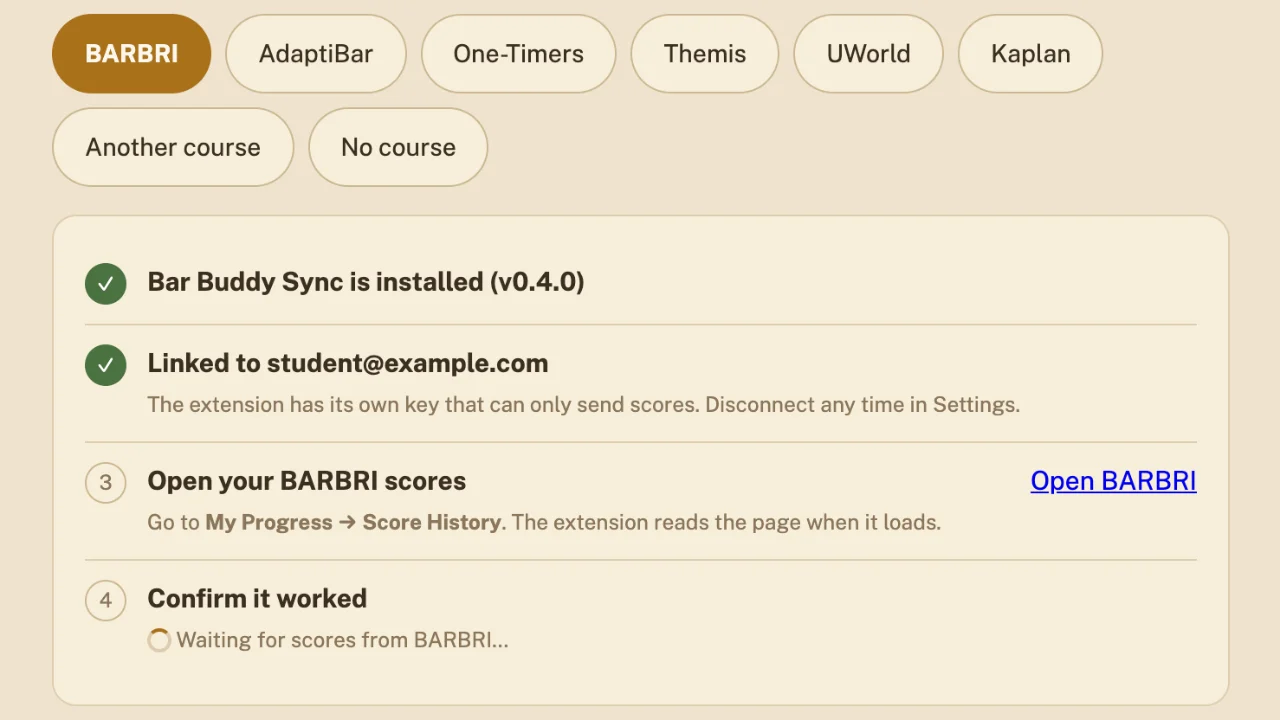
BARBRI and AdaptiBar: the Bar Buddy Sync extension
For these two, a small Chrome extension reads your score pages while you're signed in to them. You need a laptop or desktop with Chrome, Edge, Brave or Arc.
- Sign in to Bar Buddy at app.barbuddyai.com (with Google or an emailed code), then open Settings → Your course (new accounts land there at the end of setup). Pick BARBRI or AdaptiBar.
- Add Bar Buddy Sync to Chrome. The button opens the Chrome Web Store page; click Add to Chrome.
- It links itself. When it's installed, Bar Buddy notices and gives the extension its own key for your account. There is nothing to copy or paste, and no password is involved.
- Open your scores. Bar Buddy shows a button for your course's score page. Open it while signed in there.
- Check it worked. Back in Bar Buddy, the step says “Got N subjects” within a few seconds.
Where the scores are
- BARBRI: My Progress → Score History. The extension reads the table and the chart labels.
- AdaptiBar: Performance → Subject Performance, and the Past Questions report for question-by-question results.
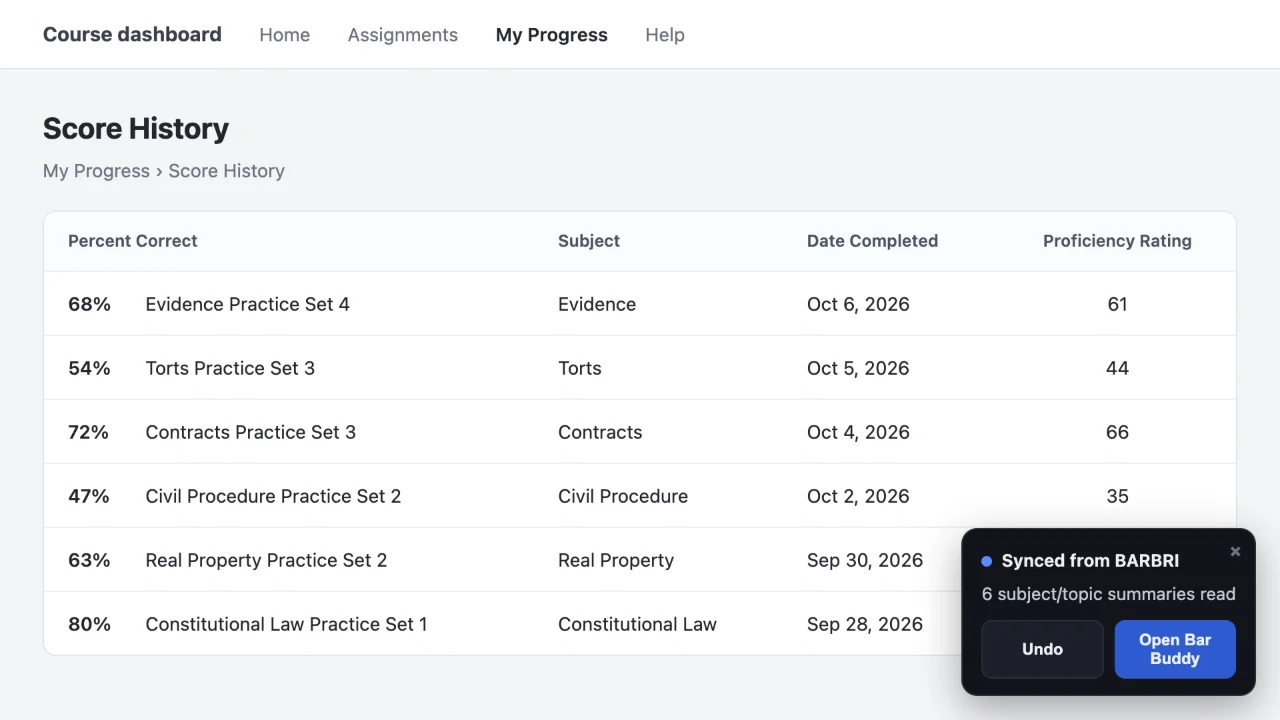
After that, open the score page whenever you finish a few sets and the new results come in. If nothing arrives for a week, Bar Buddy reminds you on your Today screen.
One-Timers: import a CSV
- In Bar Buddy, open Settings → Your course and pick One-Timers.
- Export your per-question results from One-Timers as a CSV file.
- Choose the file. Bar Buddy shows a preview — how many questions, by subject, and anything it skipped — before you click Import.
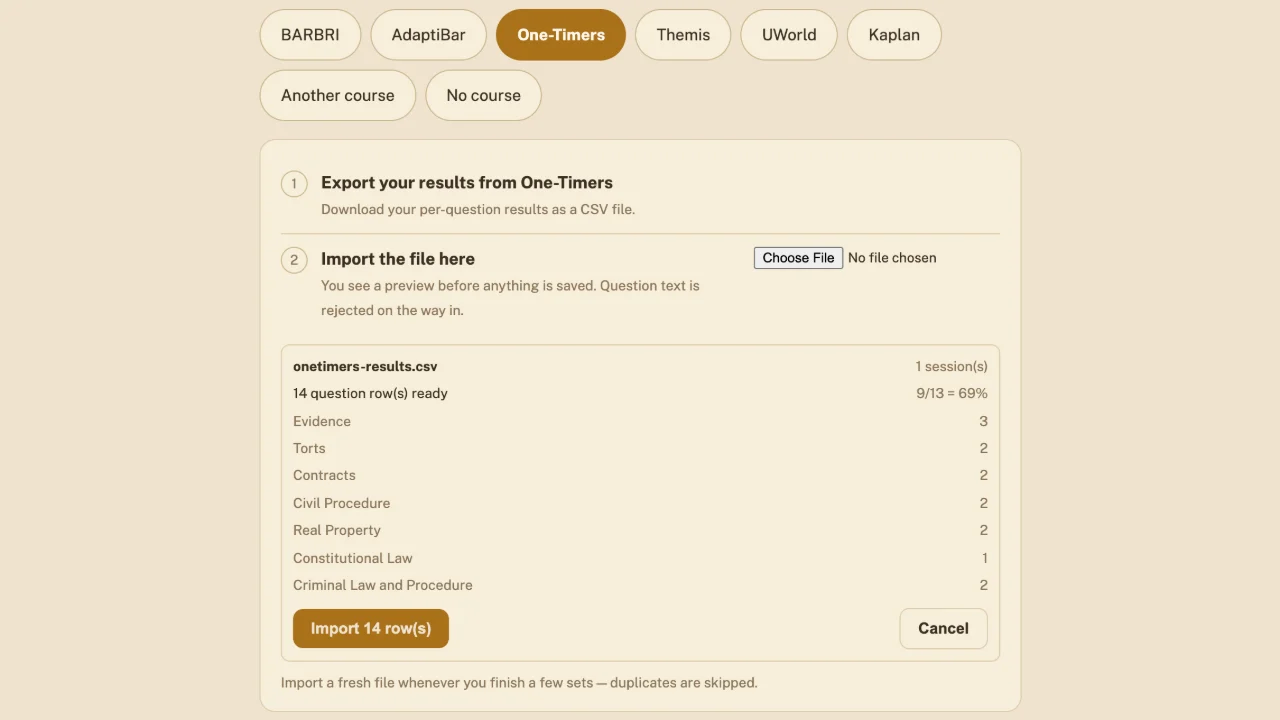
Import a fresh file every so often; questions already imported are skipped. Every import can be removed from Settings → Connected study tools.
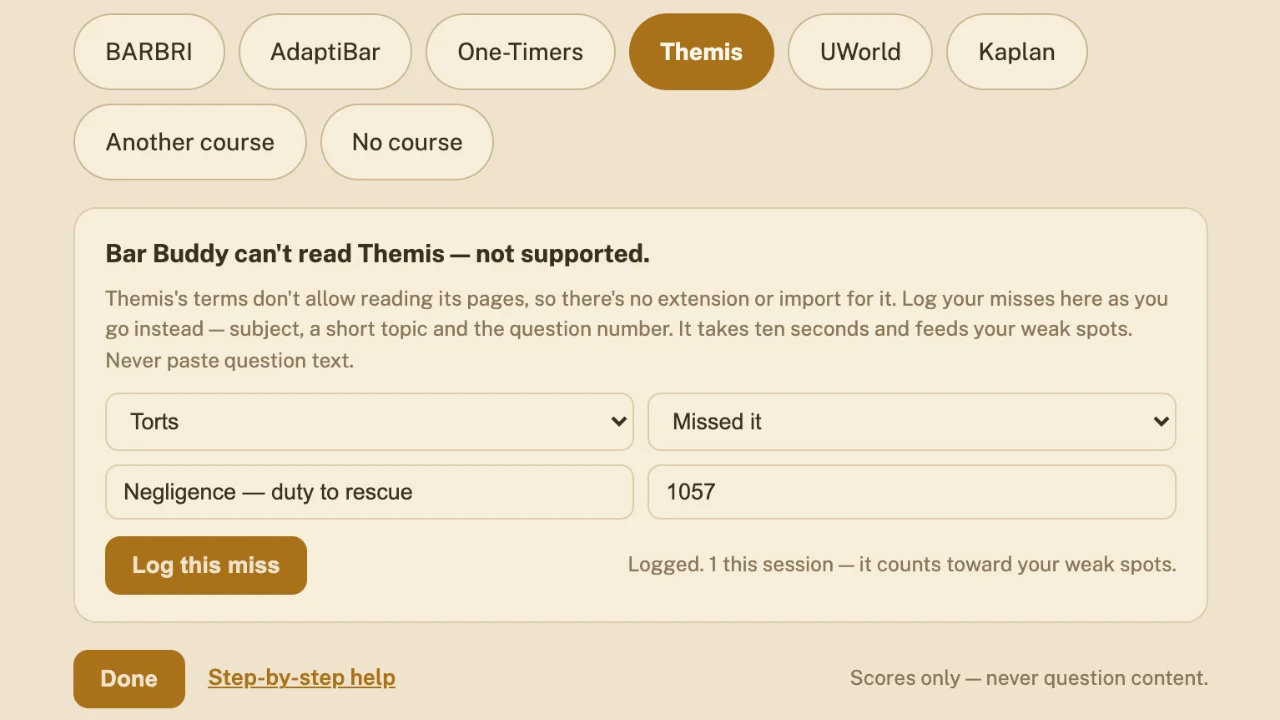
Themis, UWorld, Kaplan and other courses
These aren't supported: there's no extension or import for them. Pick your course anyway, and Bar Buddy gives you a quick form to log a miss by hand — subject, a short topic and the question number. It feeds your weak spots the same way. Never paste the question itself.
On a phone
Phones can't run browser extensions, and a CSV export is easier on a computer, so Bar Buddy asks you to finish this step on a laptop. It stays on your Today screen until it's done; everything else works on your phone as usual.
Disconnecting
Settings → Your course → Disconnect extension revokes the extension's key at once. You can also remove Bar Buddy Sync from Chrome at any time. Scores already imported stay on your account until you remove them under Connected study tools.
Still stuck?
Email [email protected] with your course and what the step says.